
Donation Reporting & Management
Purpose
The goal of this module is to track, manage, and report all donations initiated through the Bonoboo platform. This ensures full transparency for donors and corporate partners and fulfills contractual obligations.
As an NGO partner, you are required to:
Track Individual Donations: Manually record donations initiated by individual users via Bonoboo.
Confirm Business Donations: Verify and acknowledge funds received from corporate partners.
Monthly Reporting Requirement
By the 10th of each month, you must ensure all records for the previous month are up to date. This includes declaring individual donations processed through your own gateways and confirming business transfers.
Understanding Donation Channels
There are two distinct ways donations reach you via Bonoboo, and they are handled differently:
Individual Donations (Manual Reporting Required):
Flow: An individual user clicks "Donate" on Bonoboo, They are redirected to your NGO website (specifically the link you defined in your Donation Projects), They pay using your payment gateway (e.g., PayPal, Credit Card).
Your Action: Since Bonoboo cannot see your bank account, you must manually report these donations back to us.
Business Donations (Confirmation Required):
Flow: A corporate partner creates a donation pledge directly on Bonoboo, They transfer funds via Bank Transfer to the bank account you entered during Onboarding.
Your Action: You must verify the receipt of funds in your bank account and mark the donation as Confirmed in the dashboard.
Accessing the Dashboard
Navigate to the sidebar.
Select Reports > Donations.
You will see the Donations Dashboard, which lists all transactions in a single view.
Dashboard Filters
The top bar of the dashboard contains several filters to help you organize your monthly reporting or find specific transactions:
Donation Type: Toggle to view only Individual Donations or Business Donations.
Payment Status: Filter by status to see what needs attention (e.g., select Partially Confirmed to see Business donations waiting for confirmation).
Amount: Enter a Min and/or Max value to search for donations within a specific price range.
Date Range (From/To): specific dates to isolate records for your monthly report (e.g., 1st to 30th of last month).
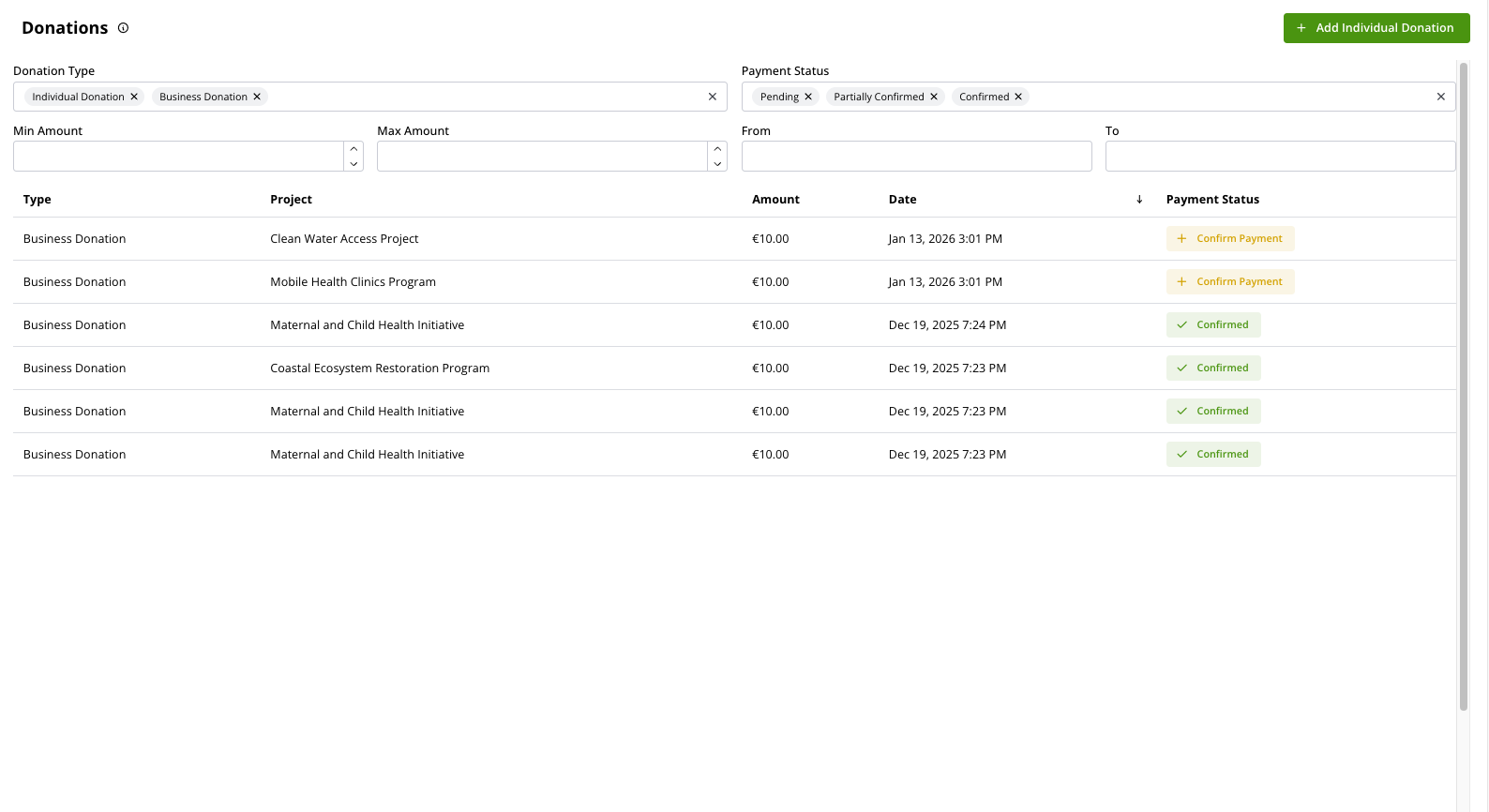
The Donations Report Dashboard showing list of donations and payment statuses
1. Tracking Individual Donations
When a donor lands on your website from Bonoboo, they bring specific tracking data with them. Capturing this data allows you to report the donation back to us easily.
How to Add a Donation
From the Donations Dashboard, click the + Add Individual Donation button.
A drawer will open on the right.
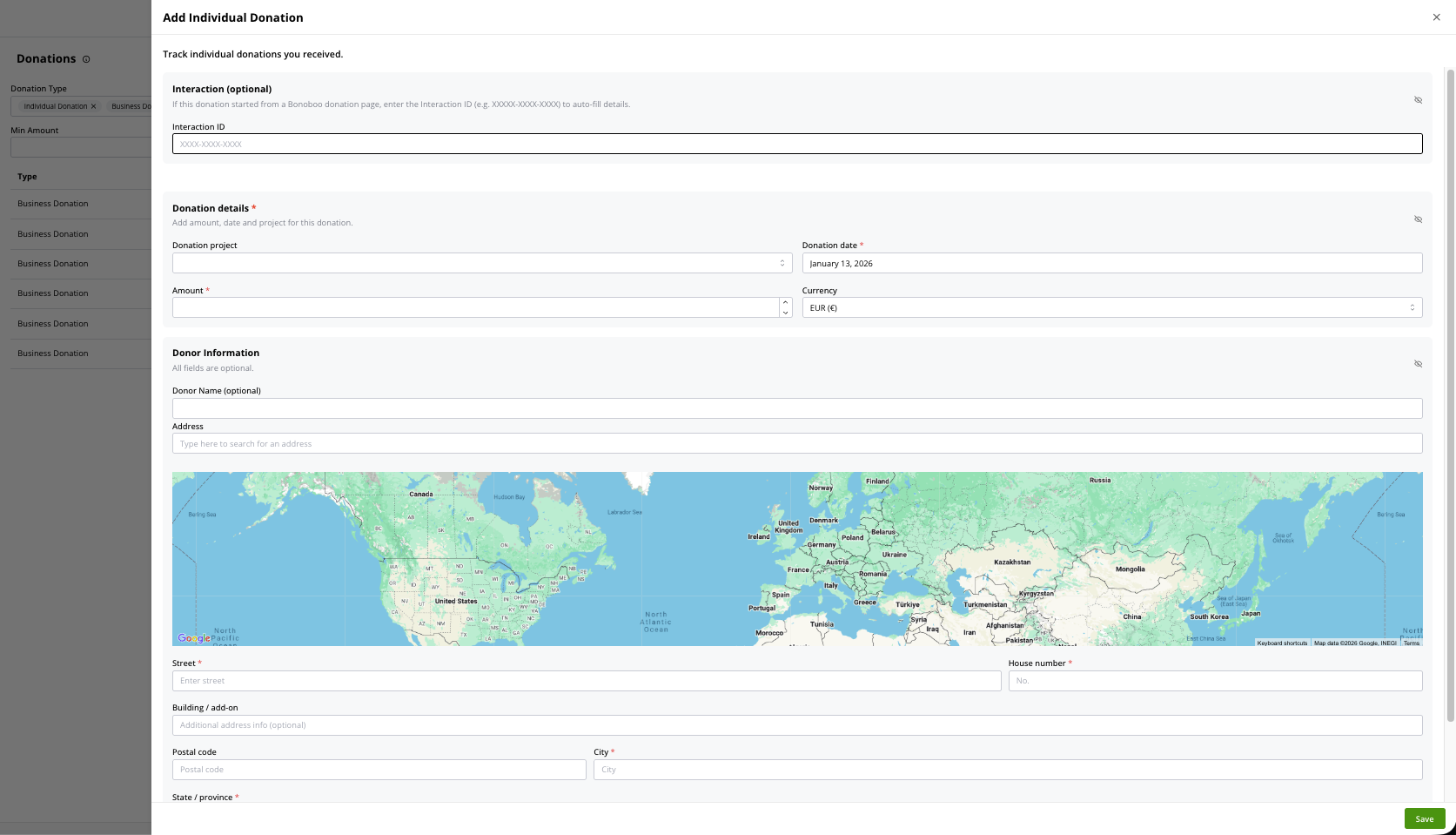
AUTOMATION TIP: Using the Interaction ID (TID)
To simplify reporting, Bonoboo appends parameters to the URL when redirecting a donor to your site.
The Redirect URL Structure:
When a user is redirected, the URL on your donation page will look like this:
Key Parameters to Capture:
utm_content(The Interaction ID / TID): This is the most important code (e.g.,TUCN2PRFDZVG). It uniquely identifies the button click on Bonoboo.transaction_uid: The ID of the user who clicked.utm_source: Always set tobonoboo.
What should you do with this?
For the Reporting Admin: When reporting the donation in Bonoboo, simply copy the utm_content value (e.g., TUCN2PRFDZVG) and paste it into the Interaction ID field.
Benefit: Pasting this ID automatically fills the Project Name, Date, and links the donation to the specific user, saving you manual data entry work.
2. Confirming Business Donations
Business donations are pledges made by companies. You do not need to create these records; you only need to confirm them.
Locate a donation with status Partially Confirmed.
Click Confirm Payment to view the details.
Note the Reference ID (e.g.,
donation_WJOlb1s7sJAa) and Amount.
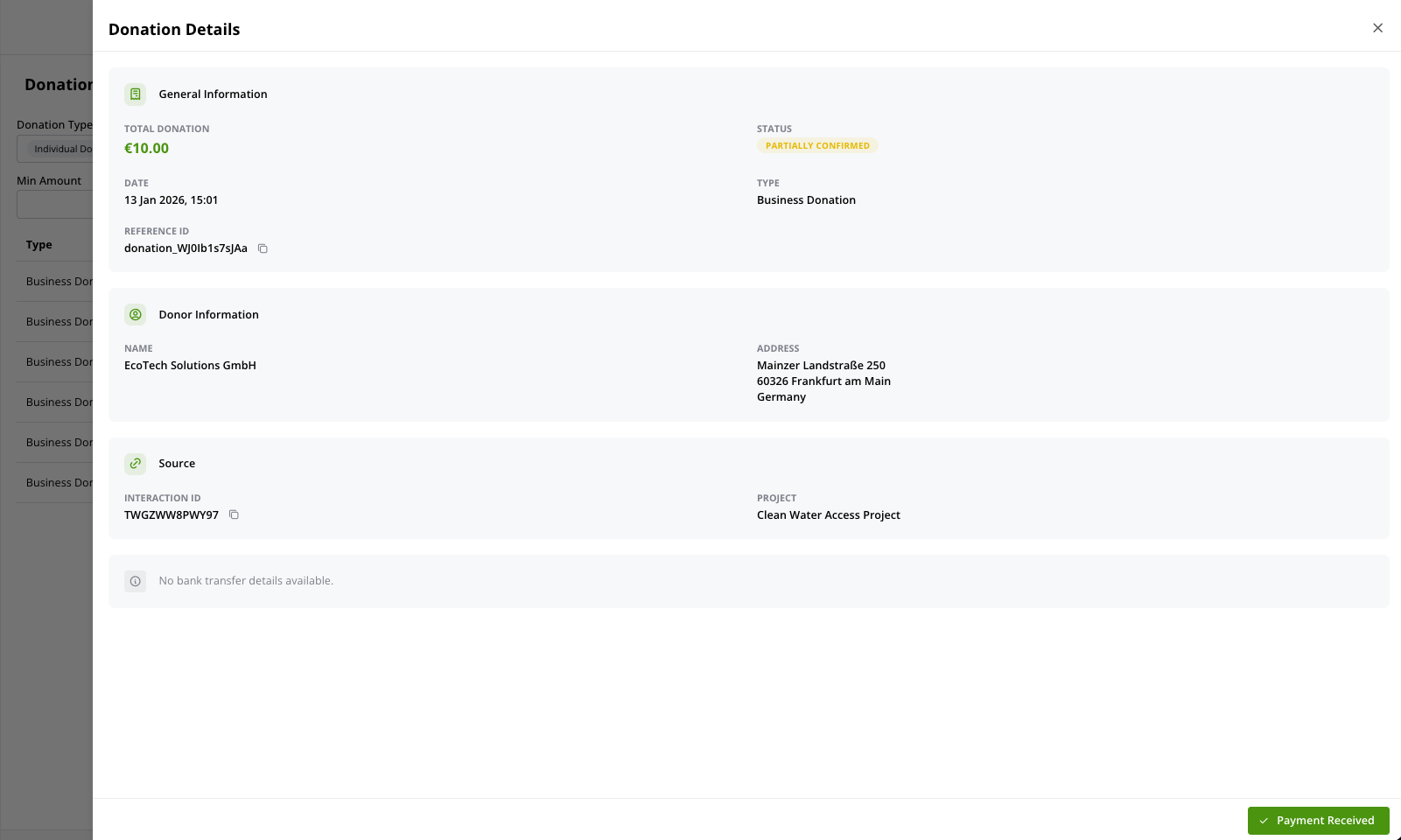
Check your bank statement for a transfer matching these details.
Click Payment Received.
Automatic Donation Reporting (Bonoboo Payments with Stripe)
If your NGO has set up Bonoboo Payments (Stripe) in your Organization
Profile, donations are automatically reported with NO manual action required:
What happens automatically:
Donor completes payment via Stripe (credit card, PayPal, or SEPA)
Payment is processed immediately by Stripe
Donation appears in your Donations dashboard within seconds
Donation status shows "Confirmed" automatically
No need to verify payments or match bank transfers
Information automatically captured:
Donor name and contact details
Donation amount and currency
Donation project (if selected by donor)
Payment method used
Exact timestamp of transaction
Stripe transaction reference ID
Monthly reporting: With Bonoboo Payments, your monthly report is
generated automatically. The dashboard shows all confirmed donations
by date range, eliminating manual reconciliation.
Manual Donation Reporting (External Payments)
If your NGO has chosen External Payments, you must manually report
donations:
Individual Donations require you to add donation details manually
using the Interaction ID from your donation website URL parameters.
Business Donations require you to:
Verify bank transfer receipt
Match donation amount against your bank statement
Mark payment status as "Payment Received" in the dashboard