Create a Donation Project
Purpose
Launch a donation project to collect donations for a specific cause. Once published, the donation project will appear in the Bonoboo app and become part of the matchmaking process, helping your NGO connect with potential business partners.
Who can do this: The Workspace Owner.
Steps:
Once your organization profile is complete, you will arrive at the main dashboard. From here, select Donation Projects to begin creating your first campaign. This section is dedicated to managing and launching projects that donors and potential partners can view.
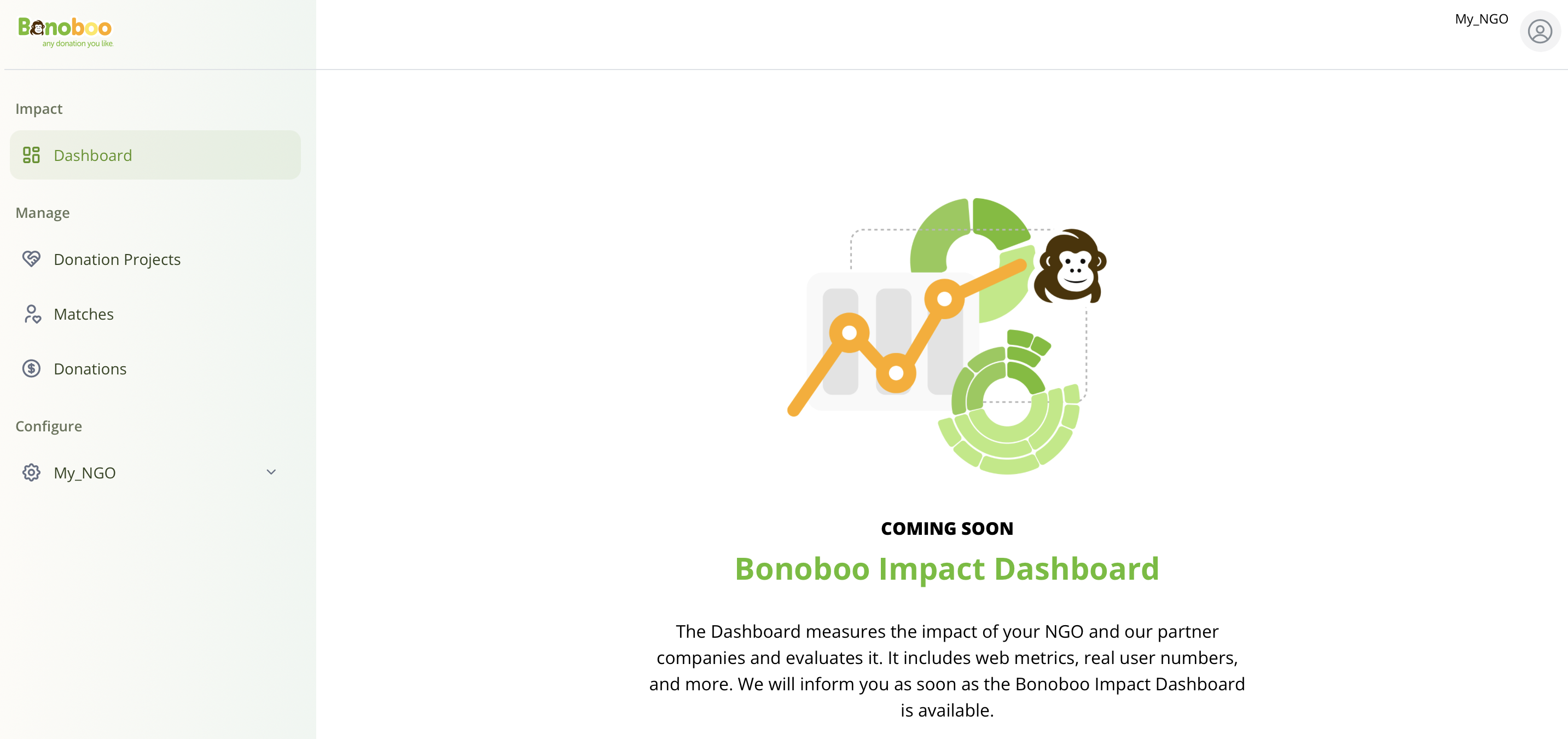
Step 1 : Main Dashboard 🐵
On the Donation Projects screen, select Create Donation Project. This will open the setup wizard where you can define the details of your donation project initiative.
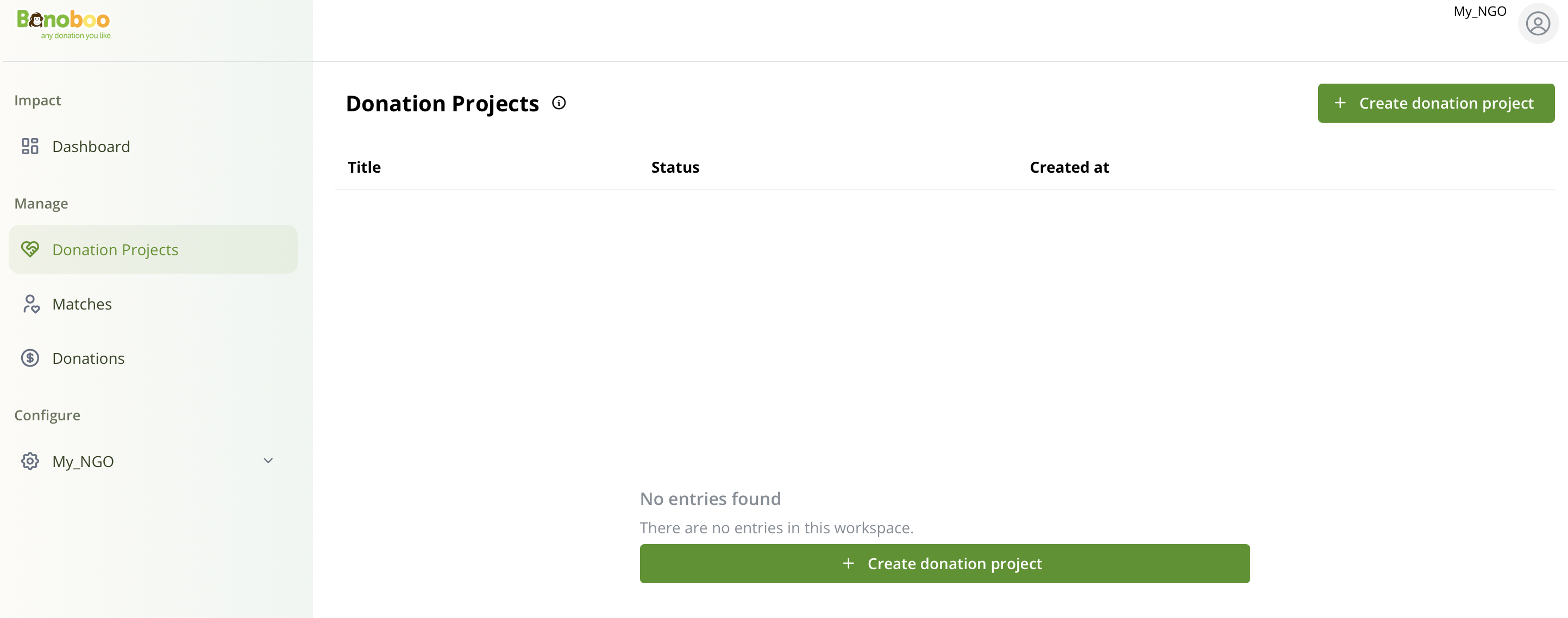
Step 2: Donation Projects Workspace :logo_projects:
In the Create Donation Project screen, fill in the essential details of your initiative. Begin with the Project Title and a Description that clearly explains the project’s purpose and goals.
You will also find optional approval settings:
Marketing Approval – allows Bonoboo to share your project on our social media channels.
Website Approval – allows Bonoboo to feature your project on the Bonoboo website.
Finally, provide the Project URL (where companies can learn more about the initiative)
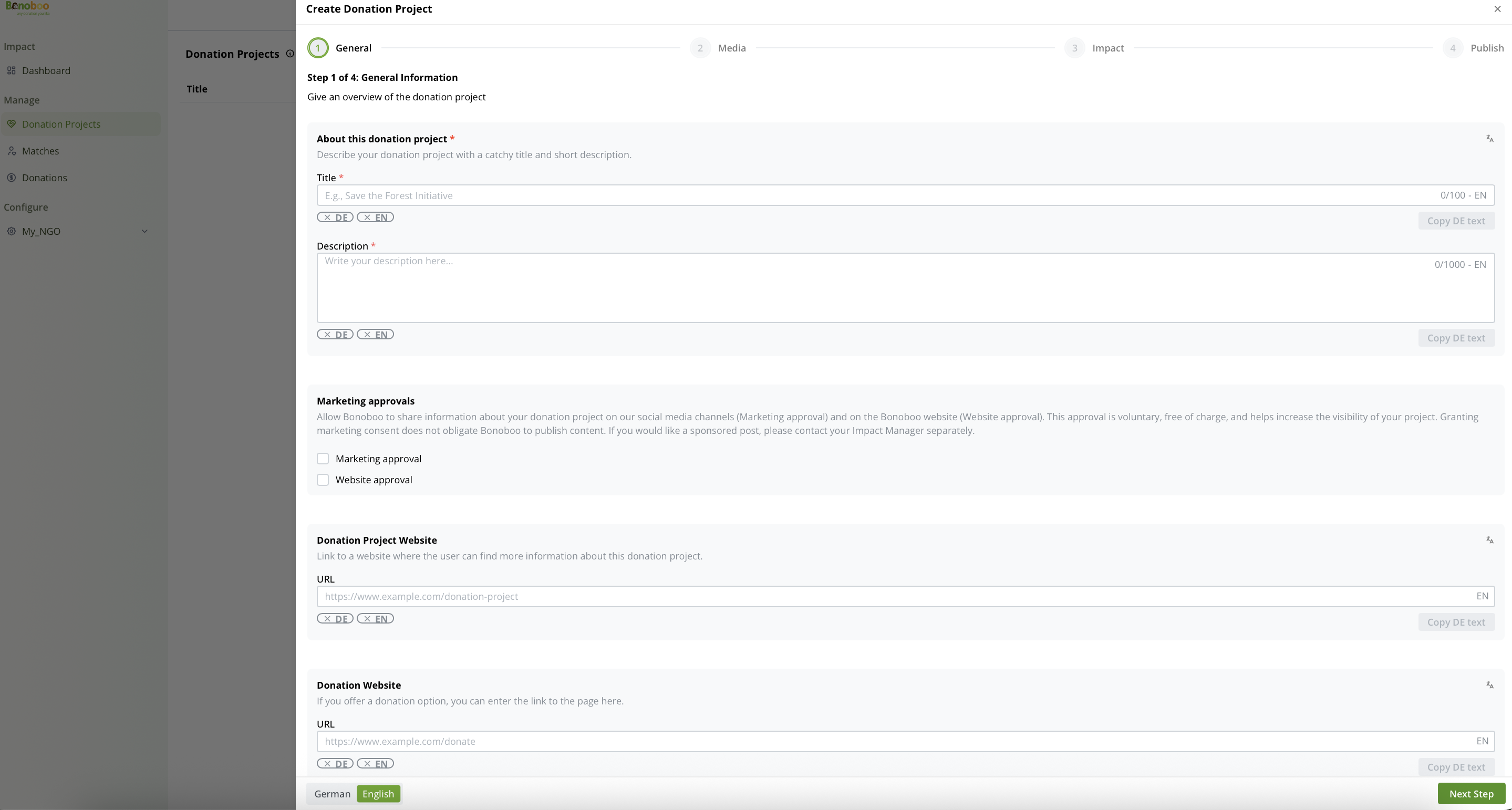
Step 3: General Information 
Payment Handling Note (Important)
Bonoboo supports two donation methods:
If your NGO uses Bonoboo Payments (Stripe):
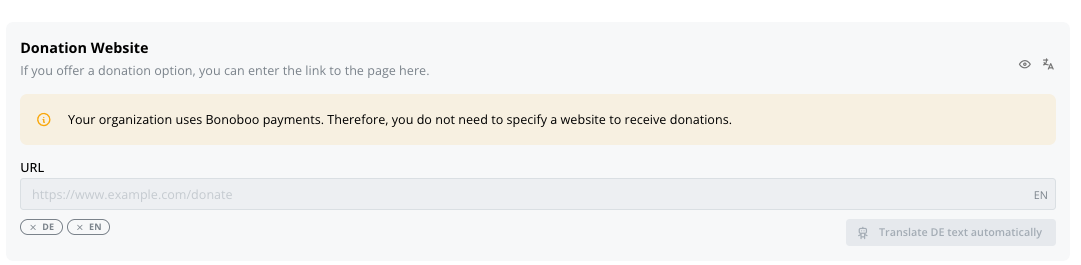
You do not need to provide a Donation URL. Donors pay directly on the Bonoboo donation page using Stripe.
If your NGO uses External Payments (Manual):
You must provide a Donation URL (your donation website or instructions page) because payments occur outside Bonoboo.
Donation Website (Donation URL) field behavior:
Stripe enabled: Donation page is hosted on Bonoboo → Donation URL can be left empty
External payments: Donation occurs on your website → Donation URL is required
In the Media section, upload a splash photo, the main image that represents your donation project. You can also add extra gallery photos to showcase your work and provide more context.
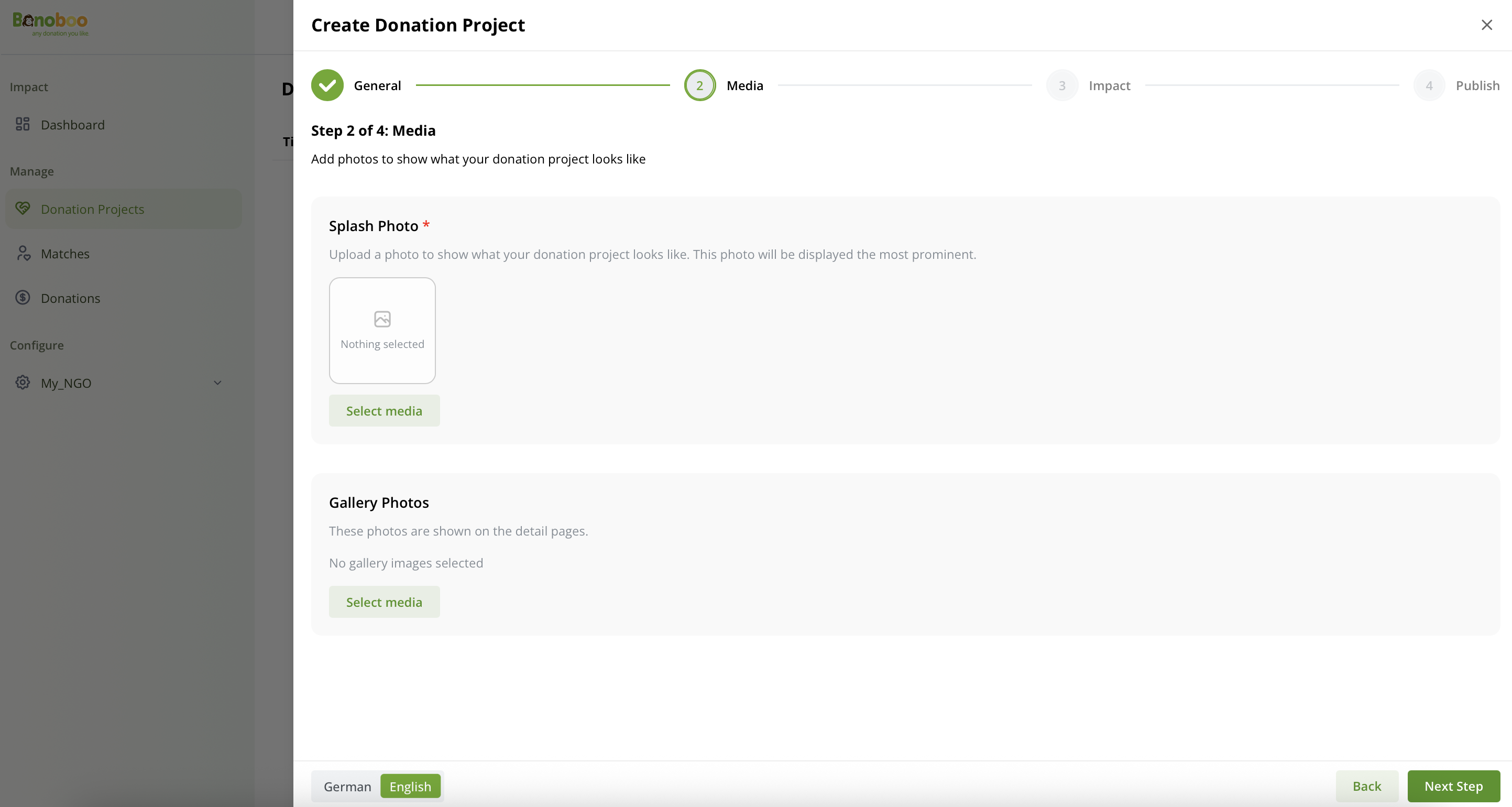
Step 4: Media 🖼️
In the Impact section of your donation project, specify the area of impact where your initiative creates value. Define whether the project’s focus is social, environmental, or a combination of both by setting the appropriate percentages. Finally, select the Sustainable Development Goal (SDG) that best aligns with your project, ensuring it connects to recognized international development priorities.
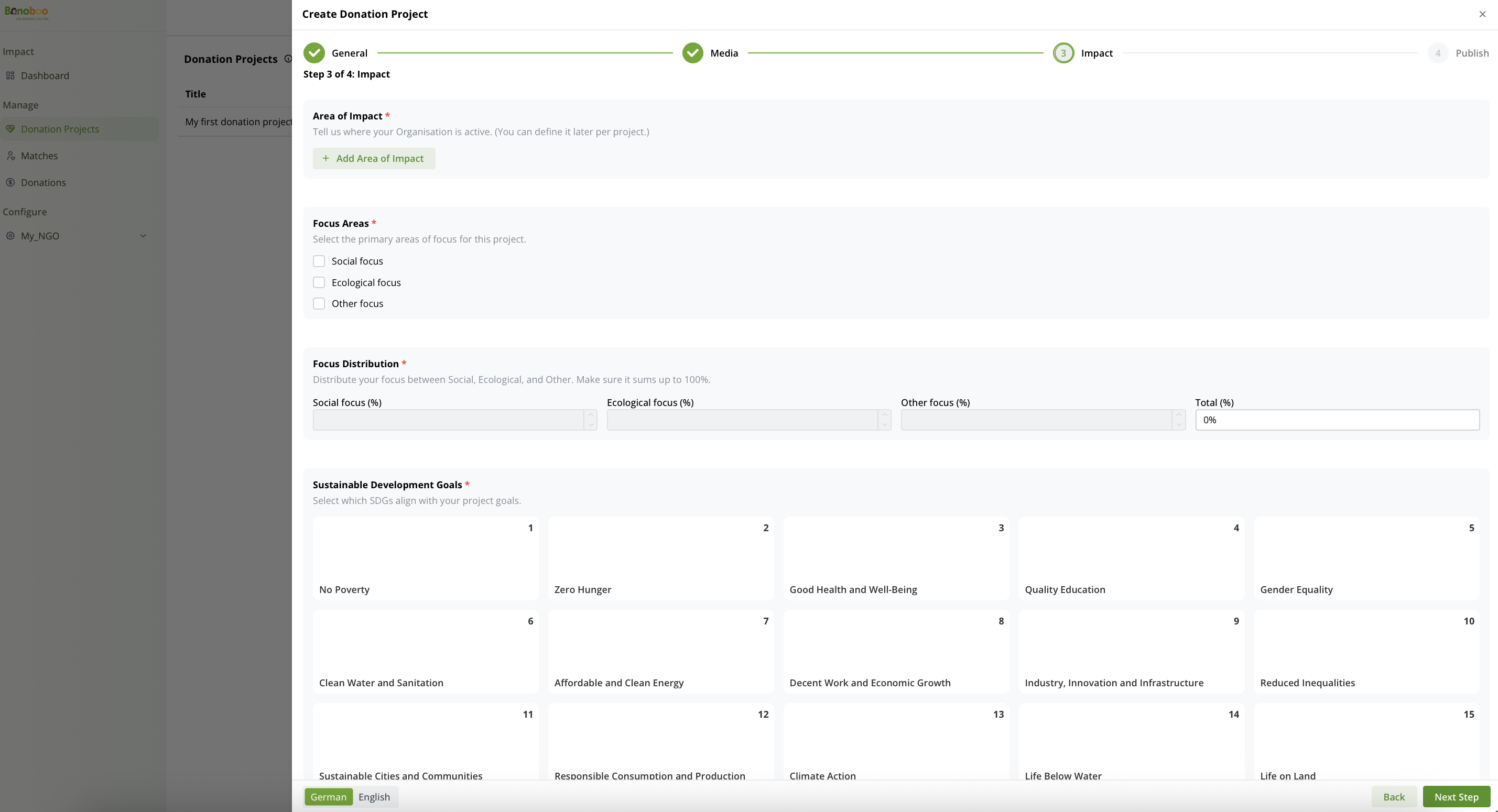
Step 5: Impact information 🌱
In the Publish section, you will see a preview of your donation project with all the information you entered. Review all details carefully to ensure accuracy. When ready, select Request Publication to submit your project for review. A confirmation window will appear — only confirm once you have double-checked everything.
After submitting your publication request:
If Approved: You will receive an email notification and your project will go live in the Bonoboo app.
If Rejected: You will see the rejection reason in your project. You can make the necessary changes and submit another publication request.
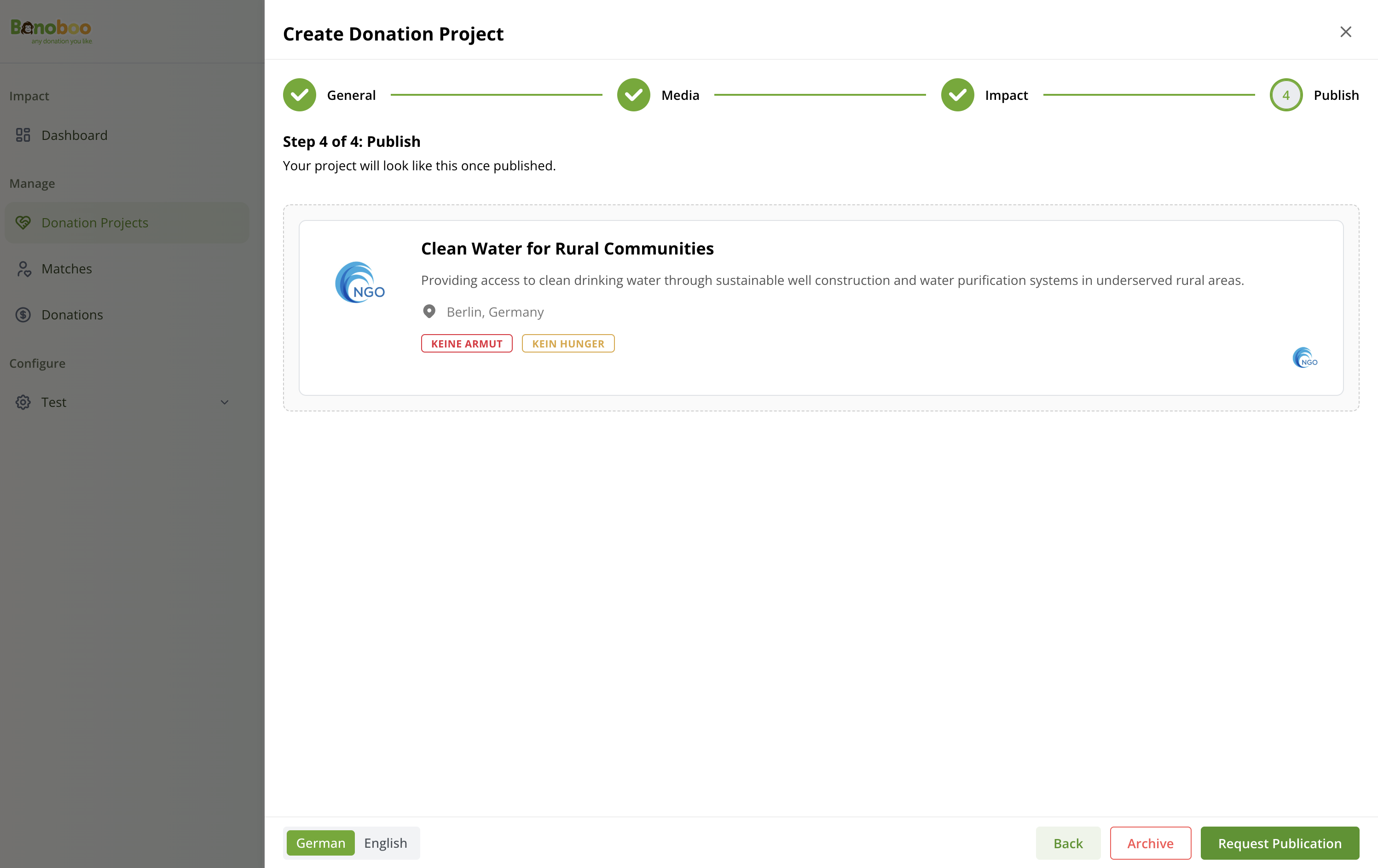
Preview of the donation project
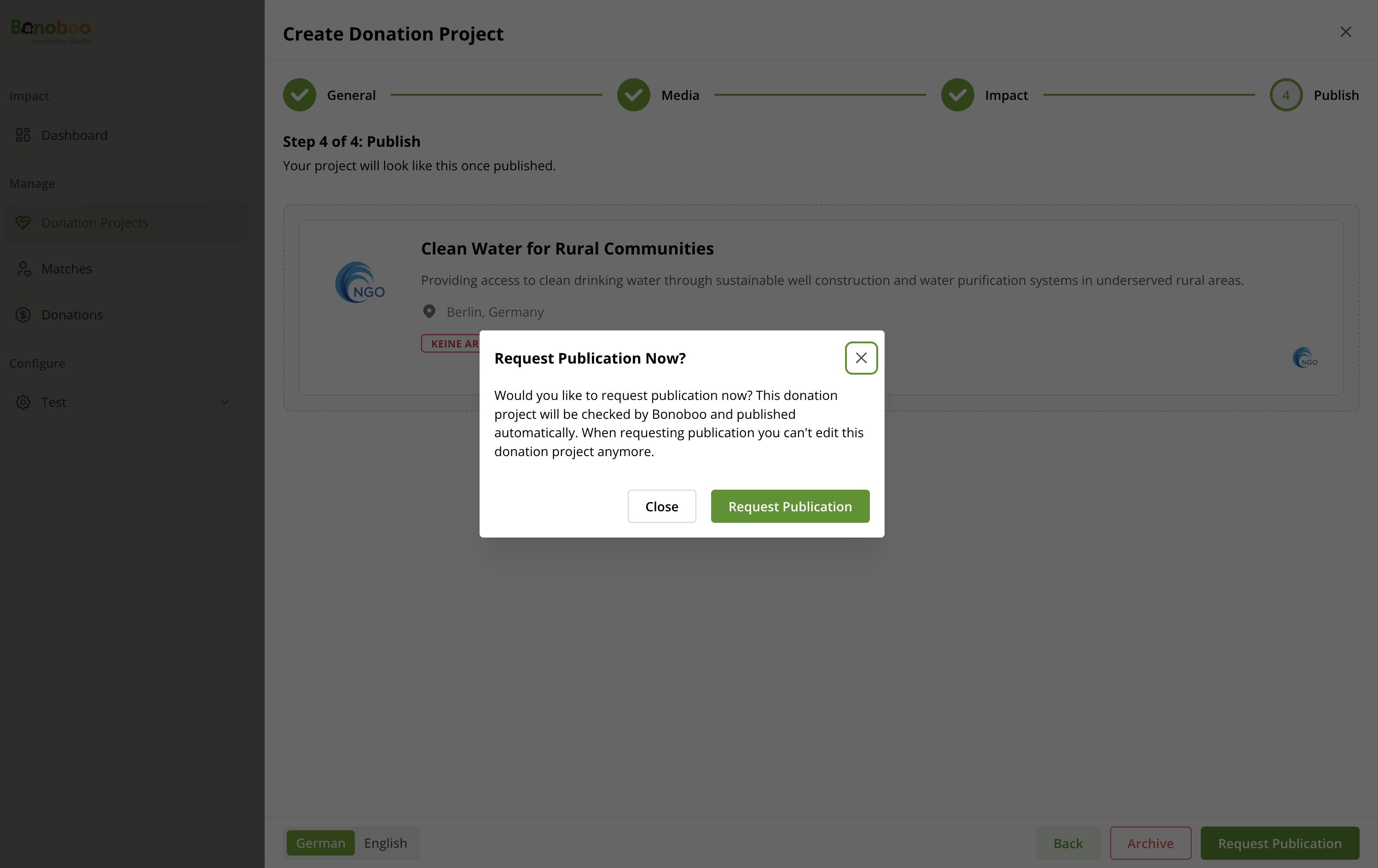
Request Publication of the donation project
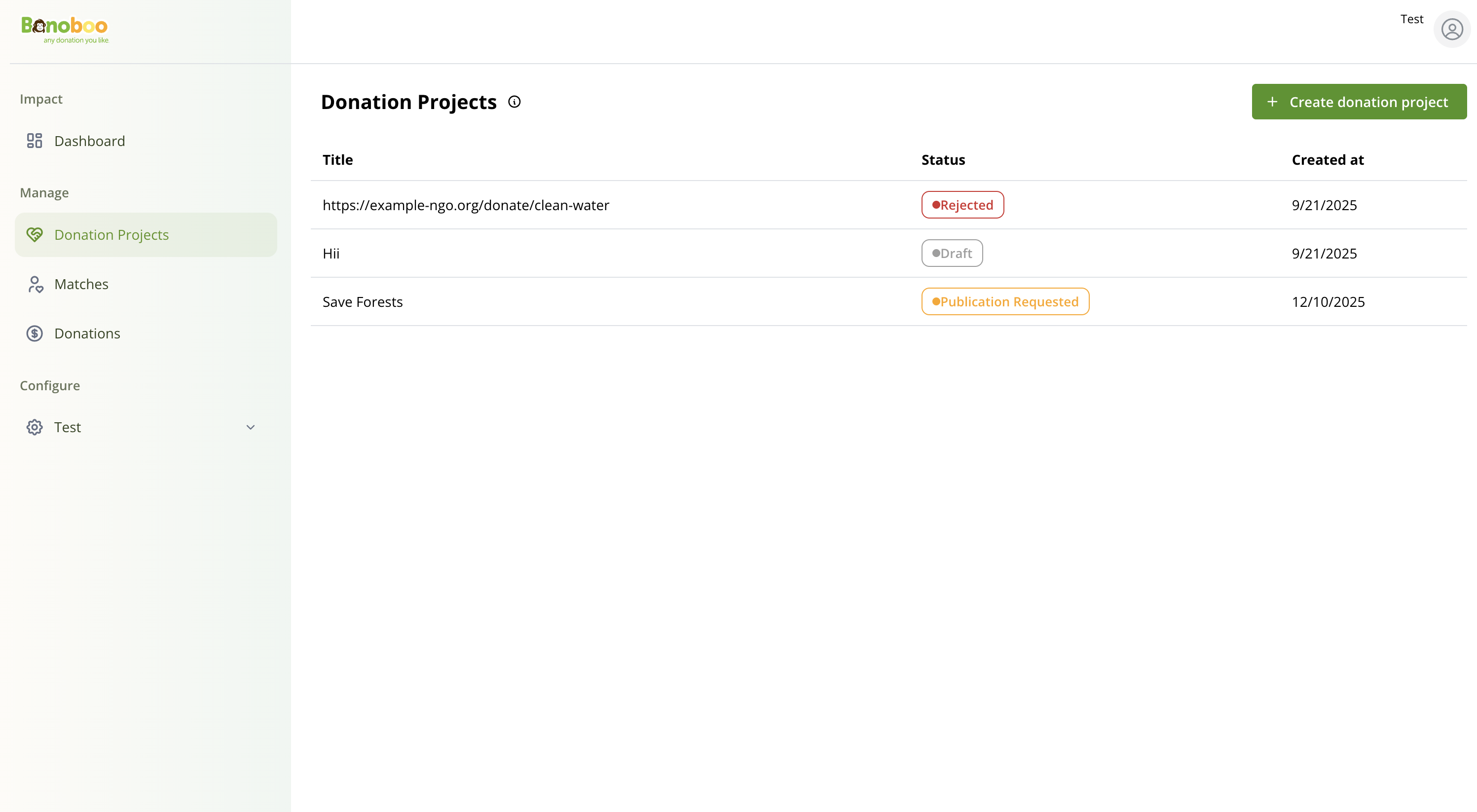
List of status of the Donation Projects
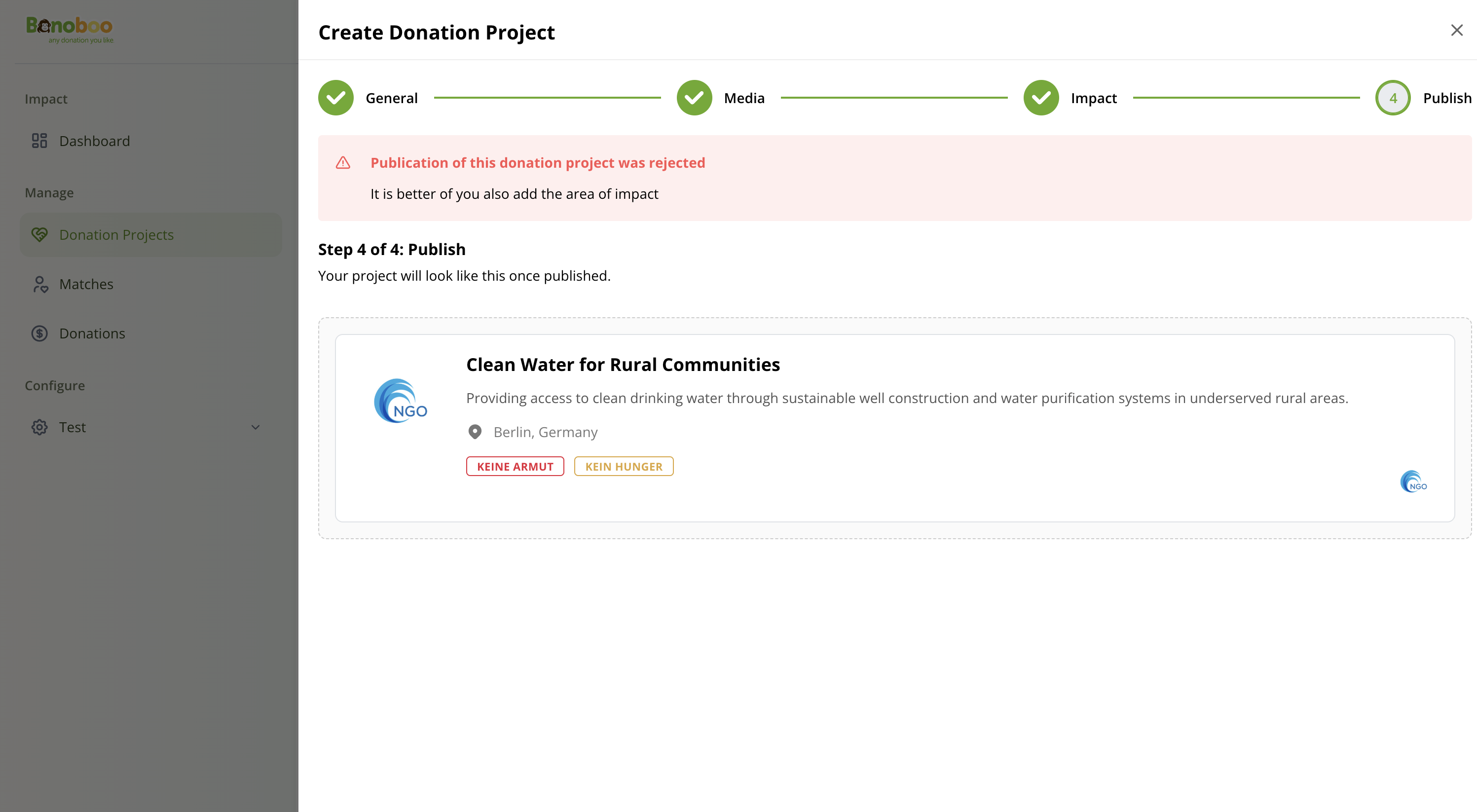
Rejected Donation Project
If you need to remove a project from the app, you can archive it. When a project is archived, its status changes to Archived, and all existing matches will be deleted. To reactivate it, you must create a new project.
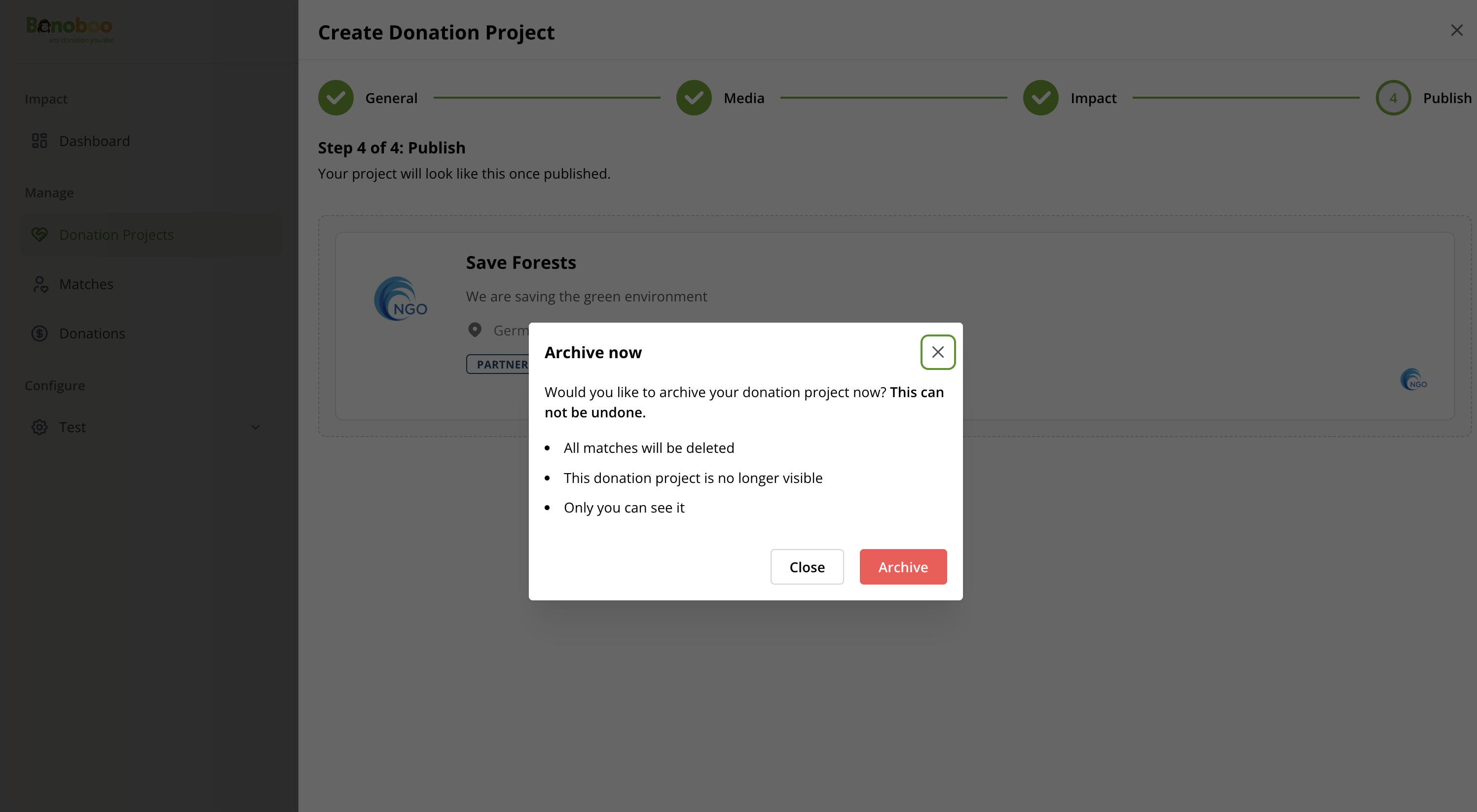
Archive Donation Project

Managing Multiple Projects
You may create and manage multiple donation projects at the same time. Each project will follow the same matching and reporting rules. Archived or unpublished projects remain stored for reference, but only active campaigns are eligible for partner matches and donations.